WVU Athletics Transitions Email Platforms
July 26, 2022 09:20 AM | Baseball, Football, General, Men's Basketball, Men's Soccer, Women's Basketball, Gymnastics, Women's Soccer, Volleyball, Wrestling
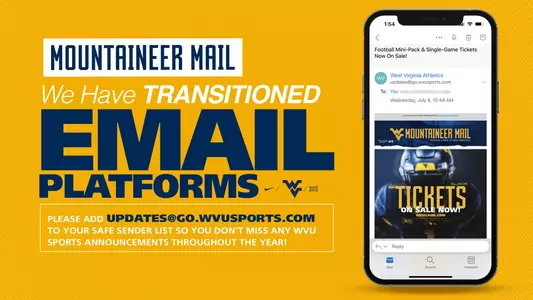
MORGANTOWN, W.Va. – In our continued efforts to better communicate with our Mountaineer fans and supporters, we have transitioned to a new email service provider.
What does this mean for you? Not much, other than the actual email address that delivers our messages. Our new email address is updates@go.wvusports.com.
To make sure you continue receiving emails from WVU Athletics, the Mountaineer Ticket Office and the Mountaineer Athletic Club, please ensure you add updates@go.wvusports.com to your address book or list of approved senders.
Below is a list of ways to add our address to your address book or list of approved senders:
AOL
Mouse over the sender's name or email address to display the contact card. Click "Add a New Contact".
Apple Mail (OS X)
Open the email. Select Message > "Add Sender to Contacts" from the menu.
AT&T, BellSouth & SBC
Open your SBCGlobal Address Book and then click the "Add Contact" button. Fill in the "From" address from your trusted sender in the space provided. Click in the "Save Contact".
Charter/Spectrum
There is not a known proactive white-list option available for these email clients. Instead, if a message from a trusted sender somehow ends up in your spam folder, simply select "Mark As" from the options listed at the top of the email and select "Not Spam".
Comcast/Xfinity
There is not a known proactive white-list option available for this email client. Instead, if a message from a trusted sender somehow ends up in your spam folder, check the box next to the message(s) that is not spam and select the "Not Spam" button at the top of the page.
Gmail.com
Go to contacts.google.com and select "Create Contact" at the top left corner. Enter the sender's email address and click "Save" at the bottom right corner. If a message from a trusted sender somehow ends up in your spam folder, open the desired email that was flagged as spam and mark it as "Not Spam" at the top of the page.
Gmail (Android Smartphone or Tablet)
Open your Contacts app and click the "Add" button. Enter the appropriate name and sending email address. Next to your email account, tap the down arrow to select the desired account that will receive the messages from the account you've whitelisted. Click "Save" before exiting to save your changes.
Hotmail, Outlook, or MSN
Click on "Options" in the upper right corner of your email screen. Then click "Safe and Blocked Sender" under "Junk e-mail". Click the "Safe Senders" link and enter the email address you want to whitelist. Click "Add" to put it on your list. If an email from a sender you want to whitelist has ended up in your junk folder, click "Show Content" to view the body of the email and click "Mark as Safe".
iPhone Mail App
Tap the "From" name or email address within an email and then select "Add to VIP" or "Create New Contact" to add the address in your contacts list. Note that if you add an email address to the VIP senders list, messages from that email address may be collected in a separate folder.
Office (365/2010)
On the Home tab, click "Junk", and then click "Junk E-mail Options". Next, go to "Safe Senders" and add the domain or specific email address that you would like to receive emails from.
Office (2010)
On the Home tab, in the Delete group, click Junk, and then click Junk E-mail Options. Next, go to "Safe senders " tab and add the domain or specific email address that you would like to receive emails from.
Yahoo Mail
Navigate to "Settings" icon, then click "More Settings" from the Yahoo Mail menu. Select "Filters" and hit "Add" to enter information about the domain name or sender. If a message from a trusted sender somehow ends up in your Yahoo Bulk folder, highlight the email and click on the "Not Spam" icon.
Yahoo Mail (Mobile App)
Open Yahoo Mail Mobile App. Click on the sidebar and open the Spam folder. Find the email you wish to whitelist and click "Move" and then select "Inbox".
We also encourage you to update your subscription preferences during this process.
If you are currently not already signed up for Mountaineer Mail, you can do so by clicking the link at the top of the story.
Thank you for your support of WVU Athletics.
Let's Go Mountaineers!
What does this mean for you? Not much, other than the actual email address that delivers our messages. Our new email address is updates@go.wvusports.com.
To make sure you continue receiving emails from WVU Athletics, the Mountaineer Ticket Office and the Mountaineer Athletic Club, please ensure you add updates@go.wvusports.com to your address book or list of approved senders.
Below is a list of ways to add our address to your address book or list of approved senders:
AOL
Mouse over the sender's name or email address to display the contact card. Click "Add a New Contact".
Apple Mail (OS X)
Open the email. Select Message > "Add Sender to Contacts" from the menu.
AT&T, BellSouth & SBC
Open your SBCGlobal Address Book and then click the "Add Contact" button. Fill in the "From" address from your trusted sender in the space provided. Click in the "Save Contact".
Charter/Spectrum
There is not a known proactive white-list option available for these email clients. Instead, if a message from a trusted sender somehow ends up in your spam folder, simply select "Mark As" from the options listed at the top of the email and select "Not Spam".
Comcast/Xfinity
There is not a known proactive white-list option available for this email client. Instead, if a message from a trusted sender somehow ends up in your spam folder, check the box next to the message(s) that is not spam and select the "Not Spam" button at the top of the page.
Gmail.com
Go to contacts.google.com and select "Create Contact" at the top left corner. Enter the sender's email address and click "Save" at the bottom right corner. If a message from a trusted sender somehow ends up in your spam folder, open the desired email that was flagged as spam and mark it as "Not Spam" at the top of the page.
Gmail (Android Smartphone or Tablet)
Open your Contacts app and click the "Add" button. Enter the appropriate name and sending email address. Next to your email account, tap the down arrow to select the desired account that will receive the messages from the account you've whitelisted. Click "Save" before exiting to save your changes.
Hotmail, Outlook, or MSN
Click on "Options" in the upper right corner of your email screen. Then click "Safe and Blocked Sender" under "Junk e-mail". Click the "Safe Senders" link and enter the email address you want to whitelist. Click "Add" to put it on your list. If an email from a sender you want to whitelist has ended up in your junk folder, click "Show Content" to view the body of the email and click "Mark as Safe".
iPhone Mail App
Tap the "From" name or email address within an email and then select "Add to VIP" or "Create New Contact" to add the address in your contacts list. Note that if you add an email address to the VIP senders list, messages from that email address may be collected in a separate folder.
Office (365/2010)
On the Home tab, click "Junk", and then click "Junk E-mail Options". Next, go to "Safe Senders" and add the domain or specific email address that you would like to receive emails from.
Office (2010)
On the Home tab, in the Delete group, click Junk, and then click Junk E-mail Options. Next, go to "Safe senders " tab and add the domain or specific email address that you would like to receive emails from.
Yahoo Mail
Navigate to "Settings" icon, then click "More Settings" from the Yahoo Mail menu. Select "Filters" and hit "Add" to enter information about the domain name or sender. If a message from a trusted sender somehow ends up in your Yahoo Bulk folder, highlight the email and click on the "Not Spam" icon.
Yahoo Mail (Mobile App)
Open Yahoo Mail Mobile App. Click on the sidebar and open the Spam folder. Find the email you wish to whitelist and click "Move" and then select "Inbox".
We also encourage you to update your subscription preferences during this process.
If you are currently not already signed up for Mountaineer Mail, you can do so by clicking the link at the top of the story.
Thank you for your support of WVU Athletics.
Let's Go Mountaineers!


Thursday, August 20
Thursday, August 20
Thursday, August 20
Thursday, August 20